

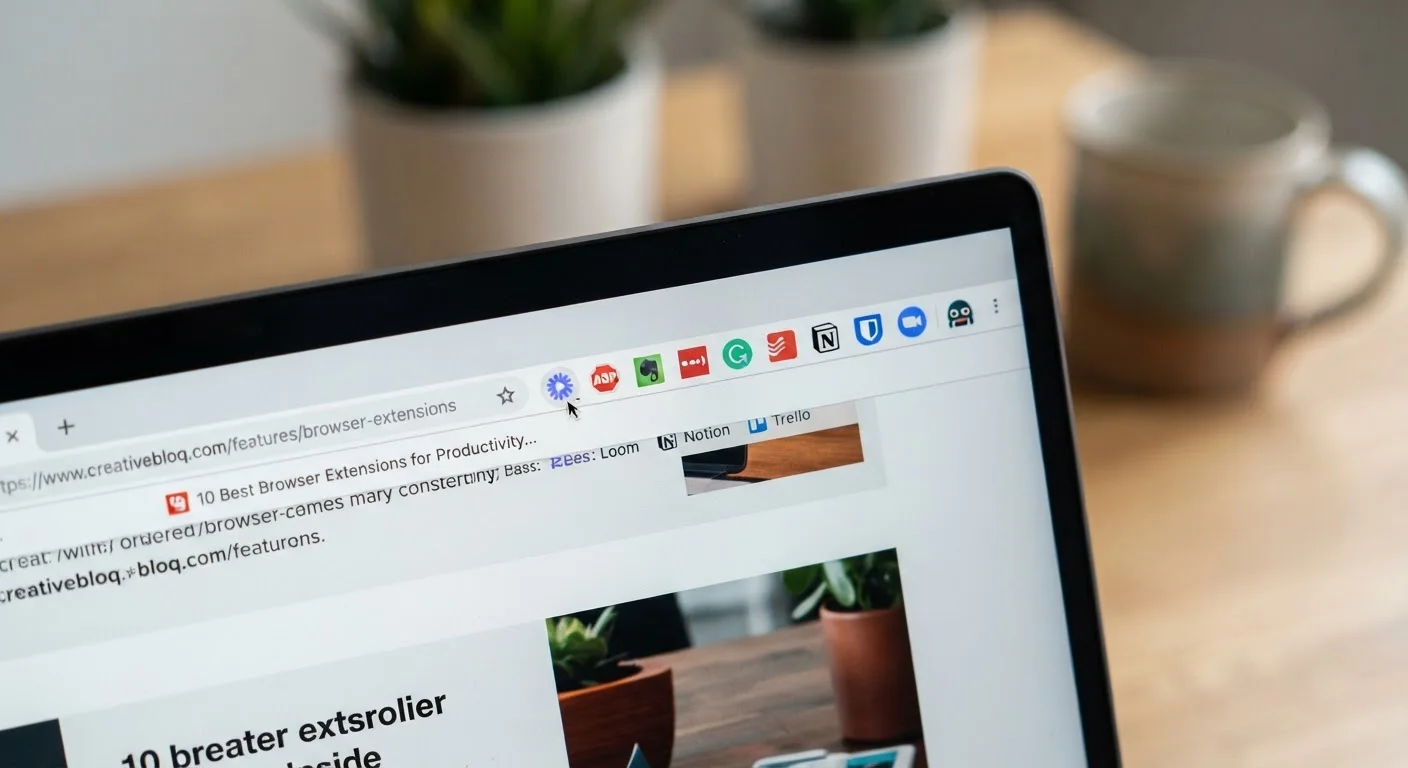
Key Takeaways
- Extensions can read and modify page content, so the permissions they request deserve careful scrutiny.
- Several extension categories - including ad blockers, password managers, and reading tools - offer genuine everyday value.
- Red flags like vague publishers, excessive permissions, and sudden ownership changes signal an extension to avoid or remove.
- Fewer extensions mean a smaller attack surface; only install what you actively use.
Why Extensions Deserve More Attention Than They Usually Get
Browser extensions are small software programs that plug directly into Chrome, Firefox, Safari, or Edge to expand what the browser can do. They can block ads, manage passwords, flag phishing sites, or help you focus - but they can also collect your browsing history, inject code into web pages, and quietly pass data to third parties.
That range of power is exactly why the installation decision matters. Extensions operate with elevated access to your browser session: many can see every page you load, read form fields, and interact with content before you do. That's useful when the extension is legitimate. It's a serious privacy risk when it isn't.
Understanding which categories of extension are genuinely worth it - and which warning signs indicate risk - is a practical skill for any everyday browser user. The list below walks through both sides of that equation. For a deeper look at one specific browser feature that raises similar trust questions, see our guide on browser-saved passwords and autofill security.
Extension Stores Are Not Fully Curated
The Chrome Web Store, Firefox Add-ons, and similar marketplaces review extensions before listing them, but that review process doesn't catch every problematic extension before it reaches users. Malicious or privacy-invasive extensions have appeared in official stores on multiple documented occasions. Treat the presence of an extension in an official store as a minimum baseline, not a full endorsement of its safety or trustworthiness.
Extension Categories Worth Knowing About
Ad and tracker blockers
Extensions that block ads and tracking scripts are among the most widely used and most well-audited tools in this category. They work by comparing page requests against maintained lists of known ad servers and trackers, preventing those requests from loading. Beyond reducing visual clutter, blocking trackers limits how much of your browsing behavior is collected by third-party data networks.
Look for extensions that publish open-source code and maintain transparent filter lists. Free, community-maintained options tend to have stronger accountability than closed, commercial ones.
Ad blockers reduce visual clutter and limit how much third-party networks can track your browsing.
Password manager browser integrations
If you already use a standalone password manager, its browser extension is one of the most security-positive installs you can make. These extensions autofill credentials only on the exact domain they were saved for - a meaningful protection against phishing sites that mimic legitimate login pages.
The extension should come directly from the same publisher as your password manager app. Third-party password extensions that aren't affiliated with a known manager are a category to approach with skepticism.
Password manager extensions fill credentials only on exact matching domains, offering real phishing protection.
Reader mode and focus tools
Extensions that strip away ads, navigation menus, and sidebars to present just the article text serve a simple, low-risk purpose. They typically need permission to modify page content on sites you visit, which is standard for their function - and their data collection needs are minimal because reading preferences don't require transmitting your activity anywhere.
These tools are practical for anyone who reads long-form content regularly. Look for extensions with few permissions beyond page content access and no account requirement.
Reader-mode extensions need minimal data access and serve a clear, contained purpose.
Link and site safety checkers
Some extensions flag known malicious URLs or check links against threat databases before you click. These can be a useful layer of protection, particularly for users who regularly open links from email or social media. Pair this habit with learning to read URL structure directly - our guide to spotting suspicious links before you click covers that skill in detail.
Safety checker extensions typically need to send visited URLs to a lookup service, so review the privacy policy to understand what is logged and retained.
Link-checker extensions add a useful safety layer, but their privacy policies are worth reading carefully.
Red flag: Vague publishers and no update history
Before installing any extension, check who made it. A publisher name that's a string of random characters, no linked website, and no history of updates is a pattern associated with low-quality or malicious software. Legitimate extensions are typically maintained over time, with visible changelogs and a publisher presence you can verify independently.
Extension stores don't guarantee that every listed item is safe. The review count and rating can be gamed, so publisher identity and update history are more reliable signals than star ratings alone.
A missing or unverifiable publisher is one of the strongest signals to walk away from an extension.
Red flag: Permission requests that don't match the function
Every extension requests specific browser permissions when you install it. A theme extension asking to read data on all websites, or a calculator tool requesting access to your clipboard on every site, should raise immediate questions. The permission scope should match what the extension actually does.
If an extension requests broad access - "read and change all your data on all websites" - and its stated purpose doesn't require that, that's a mismatch worth acting on. Decline the install or look for a narrower alternative.
Permissions that exceed the extension's stated purpose are a clear and actionable warning sign.
Red flag: Ownership changes after installation
A well-documented attack pattern involves acquiring a popular extension after it has built a user base, then pushing an update that introduces data collection or malicious behavior. Users who installed the extension when it was trustworthy don't necessarily notice the ownership change.
Periodically checking your installed extensions - and paying attention to browser notifications about permission changes after updates - is the practical defense here. If an extension you trust suddenly requests new permissions, treat that as a prompt to investigate before accepting.
Extensions can change hands after you install them - new permission requests after an update deserve investigation.
Keep Your Extension List Short
Security researchers generally recommend installing only extensions you actively use and can identify by purpose. A cluttered toolbar isn't just inefficient - each additional extension is an additional trust relationship with a third-party publisher. Aim to keep your list to five or fewer extensions where possible, and revisit it every few months to remove anything you no longer need.
Putting It Into Practice
The most useful habit you can build is periodic review. Open your browser's extension manager every few months and ask: Do I still use this? Do I remember installing it? Has the publisher changed? Remove anything that fails those checks. A leaner extension list is a safer one.
Shopping-focused extensions deserve particular scrutiny because their business model often involves tracking purchase intent and browsing behavior in exchange for deal alerts. Our articles on what shopping extensions track and how and the real limitations of price history tools explain what's happening under the hood before you grant access.
Extensions can be genuinely powerful additions to your browser - or quiet liabilities. The difference usually comes down to who made it, what it needs access to, and whether you actually still use it.