

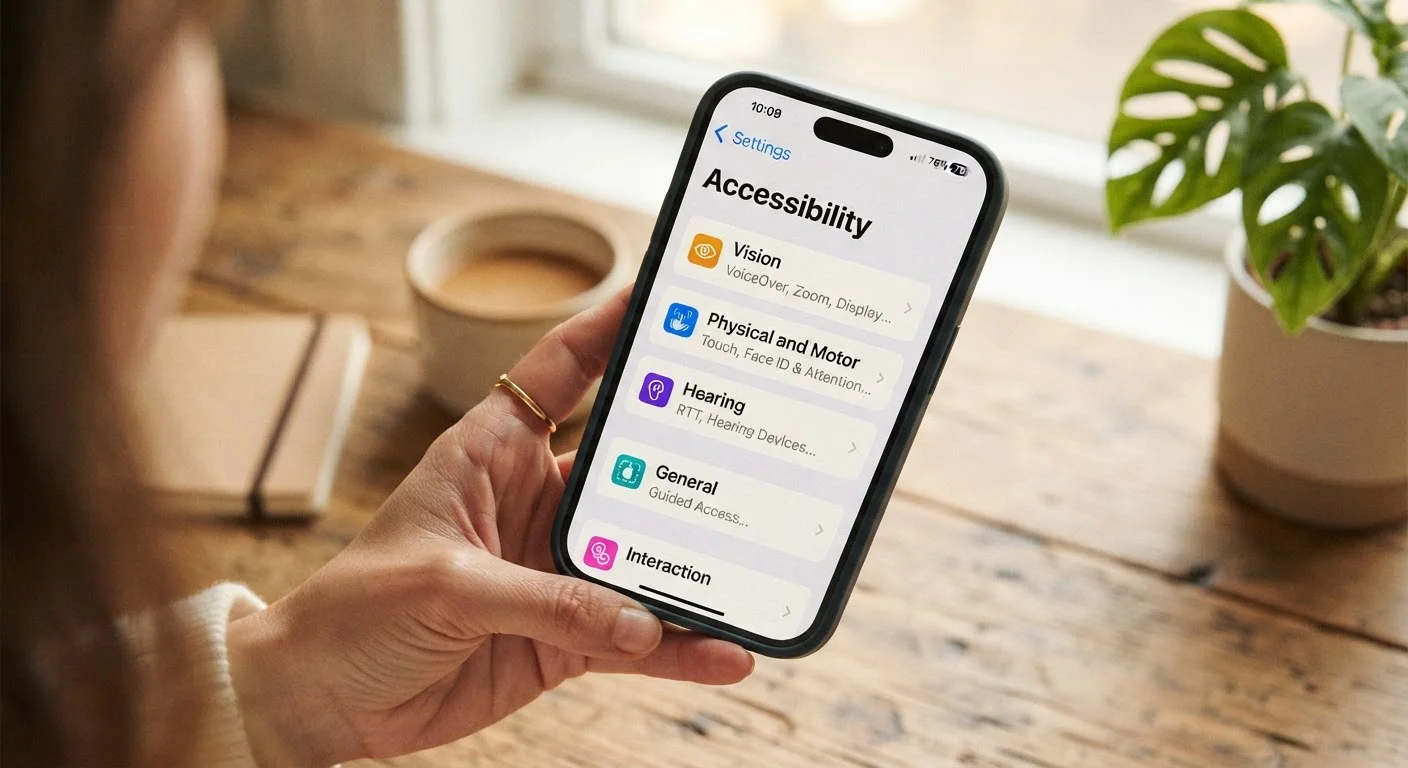
Key Takeaways
- Both iOS and Android include robust accessibility features that work without any extra apps or purchases.
- Settings like display text size, contrast, and color filters benefit far more users than just those with disabilities.
- Voice control, gesture navigation, and audio descriptions are often several taps away in your phone's settings.
- Exploring the Accessibility section of your phone's settings is one of the highest-impact things you can do to personalize daily use.
Your Phone Is More Adaptable Than You Think
Most people set up a new phone, pick a wallpaper, and never revisit the settings again. That's a missed opportunity - particularly in the Accessibility section, which has grown from a narrow collection of tools for users with specific disabilities into a comprehensive toolkit for anyone who wants to use their phone more comfortably and efficiently.
Whether you struggle to read small text on bright days, find certain notification sounds disruptive at night, or simply want more control over how your device responds to touch, your phone likely already has a setting for it. Both iOS and Android have invested heavily in these features, and they're available to every user by default. No additional apps, subscriptions, or purchases required.
Just as it's worth auditing your phone's privacy settings, spending a few minutes in the Accessibility menu can meaningfully improve your daily experience.
Display Text Size and Bold Text
One of the most widely useful accessibility settings controls how text is rendered across the entire operating system. Both iOS and Android let you increase (or decrease) the base text size system-wide, meaning every app that respects the platform's guidelines will scale accordingly - not just the system menus.
On iPhone, navigate to Settings → Accessibility → Display & Text Size. On Android, look under Settings → Accessibility → Text and display (exact path varies by manufacturer). Enabling Bold Text simultaneously can improve legibility further, particularly on OLED screens where fine letterforms can appear thin at higher brightness.
Increasing system-wide text size takes under a minute and often eliminates the need to zoom in constantly.
Color Filters and Contrast Adjustments
Standard screen colors don't work equally well for everyone. Color blindness affects a meaningful percentage of the population, and even users without a formal diagnosis can find certain color combinations hard to distinguish - particularly red-green pairings common in app interfaces.
iOS offers Color Filters under Accessibility → Display & Text Size, where you can select from protanopia, deuteranopia, tritanopia, or grayscale modes. It also offers Increase Contrast and Reduce Transparency options that sharpen visual separation between UI elements. Android provides similar controls under Color correction and Color inversion in its Accessibility settings.
Color filter settings can transform app usability for anyone who finds standard palettes difficult to read.
Voice Control and Switch Access
Full hands-free phone control isn't a futuristic concept - it's already built in. Apple's Voice Control (Settings → Accessibility → Voice Control) lets you navigate your entire phone using spoken commands: tapping items by name, scrolling, dictating text, and even triggering gestures. It works entirely on-device, meaning it doesn't require an internet connection.
Android offers Voice Access as a downloadable extension of its core Accessibility framework, and most Android devices also include Switch Access, which allows the phone to be controlled via external adaptive switches - hardware designed for users with limited motor control. Both platforms also support AssistiveTouch and Accessibility Menu overlays that add large, persistent navigation buttons to the screen.
Voice Control on iPhone operates entirely on-device, requiring no internet connection for full hands-free navigation.
Screen Reader Features: VoiceOver and TalkBack
VoiceOver on iOS and TalkBack on Android are screen reader systems that describe everything on screen aloud - app names, button labels, image descriptions, notifications. They're the primary tools for users who are blind or have severe low vision, but they're also genuinely useful for anyone who wants to navigate their phone without looking at it.
Activating a screen reader changes the touch interaction model significantly (a single tap selects rather than activates; double-tap activates), so it's worth reading the brief onboarding tutorial each platform provides before enabling it for the first time. You can assign the Accessibility Shortcut (triple-clicking the side or home button) to toggle the screen reader quickly without diving into settings each time.
Triple-clicking the side button can toggle VoiceOver or TalkBack instantly - no settings menu required.
Sound Recognition and Haptic Alerts
iPhones running iOS 14 and later include Sound Recognition, a feature that continuously listens for specific environmental sounds - smoke alarms, doorbells, crying babies, knocking - and sends a notification when it detects one. It's designed primarily for Deaf and hard-of-hearing users, but it's also practical for anyone wearing noise-canceling headphones or working in a space where they can't easily hear ambient alerts.
Both platforms also allow extensive customization of haptic (vibration) feedback patterns for calls, notifications, and system events. On iOS, you can create custom vibration patterns for individual contacts. Android's vibration intensity and pattern settings vary by manufacturer but are generally found under Accessibility → Vibration & haptic strength.
Sound Recognition turns your iPhone into a passive alert system for environmental sounds you might miss.
Magnifier, Zoom, and Spoken Content
The Magnifier on iPhone (Settings → Accessibility → Magnifier) turns your phone's camera into a real-time digital magnifying glass - useful for reading fine print on packaging, menus, or labels. It supports brightness and contrast adjustments and can freeze the frame so you don't have to hold the phone steady while reading.
Separately, Zoom creates a movable magnification window over any part of the screen itself, while Spoken Content (Settings → Accessibility → Spoken Content) allows you to have selected text or entire screens read aloud at adjustable speeds. Android equivalents include Magnification under Accessibility and the Select to Speak feature, which reads highlighted on-screen text aloud on demand.
The iPhone Magnifier can freeze and enhance a camera view, making fine print far easier to read.
Making These Features Part of Your Routine
The features above represent just a portion of what's available - both iOS and Android update their accessibility offerings regularly, often adding tools that are genuinely useful for a broad audience. The challenge is discoverability: these settings are rarely promoted, and many users simply don't know to look for them.
A practical starting point is opening Settings → Accessibility on your device and scrolling through every category. Many options include brief descriptions explaining what they do and who they help. You may find that a feature you've been wanting - like the ability to slow down system animations or have incoming calls read aloud - already exists.
Use the Accessibility Shortcut
On iPhone, go to Settings → Accessibility → Accessibility Shortcut and assign your most-used feature to a triple-click of the side or home button. On Android, many features can be pinned to a floating Accessibility button that stays visible across all apps. This makes it practical to switch features on and off contextually rather than leaving them enabled all day.
If you use streaming services, similar thinking applies: accessibility features on streaming platforms like audio descriptions and enhanced captions are often underused for the same reason - they're available but not visible by default.