

Key Takeaways
- Microphone, camera, and location permissions are often granted to apps by default without your active consent.
- Ad identifiers on both iOS and Android can be reset or disabled to reduce cross-app tracking.
- Location access has multiple granularity levels - 'always on' is rarely necessary for most apps.
- Smart home devices and connected gadgets carry their own privacy settings separate from your phone.
- Reviewing permissions once every few months catches changes introduced by app updates.
Summary
18 items · 20-45 minutes
Why Default Settings Favor Data Collection
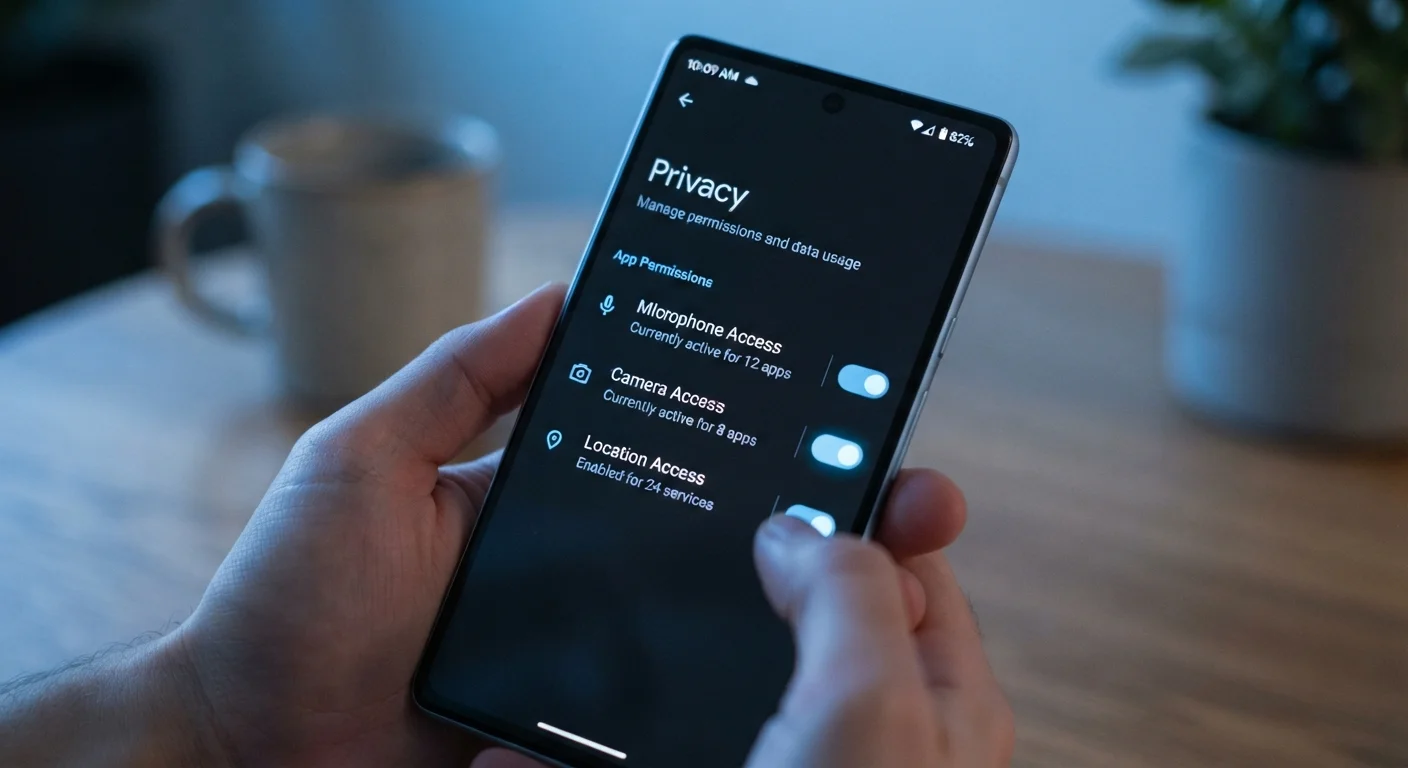
Modern gadgets are designed to be convenient out of the box - which often means permissions are pre-enabled to make features work immediately. The problem is that convenience defaults and privacy defaults are rarely the same thing. Microphones, cameras, location services, and advertising identifiers are routinely active before you've considered whether you want them to be.
This checklist is designed to help you work through the most consequential settings across your phone, tablet, and connected devices. You don't need to lock everything down - the goal is making deliberate choices rather than accepting whatever a manufacturer or app developer decided for you.
For a deeper look at what happens the moment you tap "Allow" on an app permission request, see what app permissions actually grant access to.
Location Services
Microphone and Camera Access
Advertising and Tracking Identifiers
App Permissions Audit
Smart Home and Connected Devices
Ongoing Maintenance
Tools You'll Need for This Audit
No third-party software is required. Everything in this checklist is accessible through the built-in settings menus on your devices. Having your devices fully charged and a few minutes of uninterrupted time makes the process smoother.
iOS Settings App
Access Privacy & Security controls for location, microphone, camera, tracking, and app permissions on iPhone and iPad.
Android Settings App
Manage app permissions, the Privacy Dashboard, advertising ID, and location controls on Android phones and tablets.
Smart Device Companion App
Review and adjust privacy, data storage, and voice history settings for smart speakers, displays, and other connected devices.
Router Admin Panel
Monitor which devices are connected to your home network and identify any unexpected smart home devices.
Smart Home and Connected Device Privacy
Phones and tablets are only part of the picture. Smart speakers, displays, and other connected devices operate on separate privacy frameworks with their own settings - and they're easier to overlook because they don't have obvious settings menus on the device itself.
Companion Apps Control More Than You Think
The companion app for a smart home device often has separate privacy settings from the device itself. Adjusting settings on the physical device may not affect what the associated cloud account stores. Always check both the device menu and the app or web dashboard to get a complete picture of what's being collected.
For a thorough breakdown of what connected home gadgets are actually capturing and when, see how smart speakers and displays handle audio and data. If you want to extend this audit to your Google account specifically, a practical Google privacy audit walks through the key account-level controls.
Factory Reset Does Not Erase Cloud-Stored Data
Resetting a smart device to factory settings removes local data and your account association from the hardware - but it does not automatically delete data already uploaded to the manufacturer's servers. If you're selling or disposing of a device, log into the associated account and manually delete stored data (such as voice recordings or usage history) before performing a factory reset.
Software updates can quietly re-enable settings or introduce new data collection options. Checking your privacy settings after a major OS or firmware update is a worthwhile habit - see how manufacturers use updates to change gadget behavior for context on what can change.