

Key Takeaways
- A single permission can grant access to far more data than its label suggests.
- Location access in particular can reveal highly sensitive behavioral patterns over time.
- Both Android and iOS let you review and revoke permissions at any time in Settings.
- Some permissions carry substantially higher privacy risk than others and deserve extra scrutiny.
- Apps can share permitted data with third-party advertisers and analytics services.
- Denying a permission doesn't always break app functionality - test it before assuming you must accept.
App Permissions
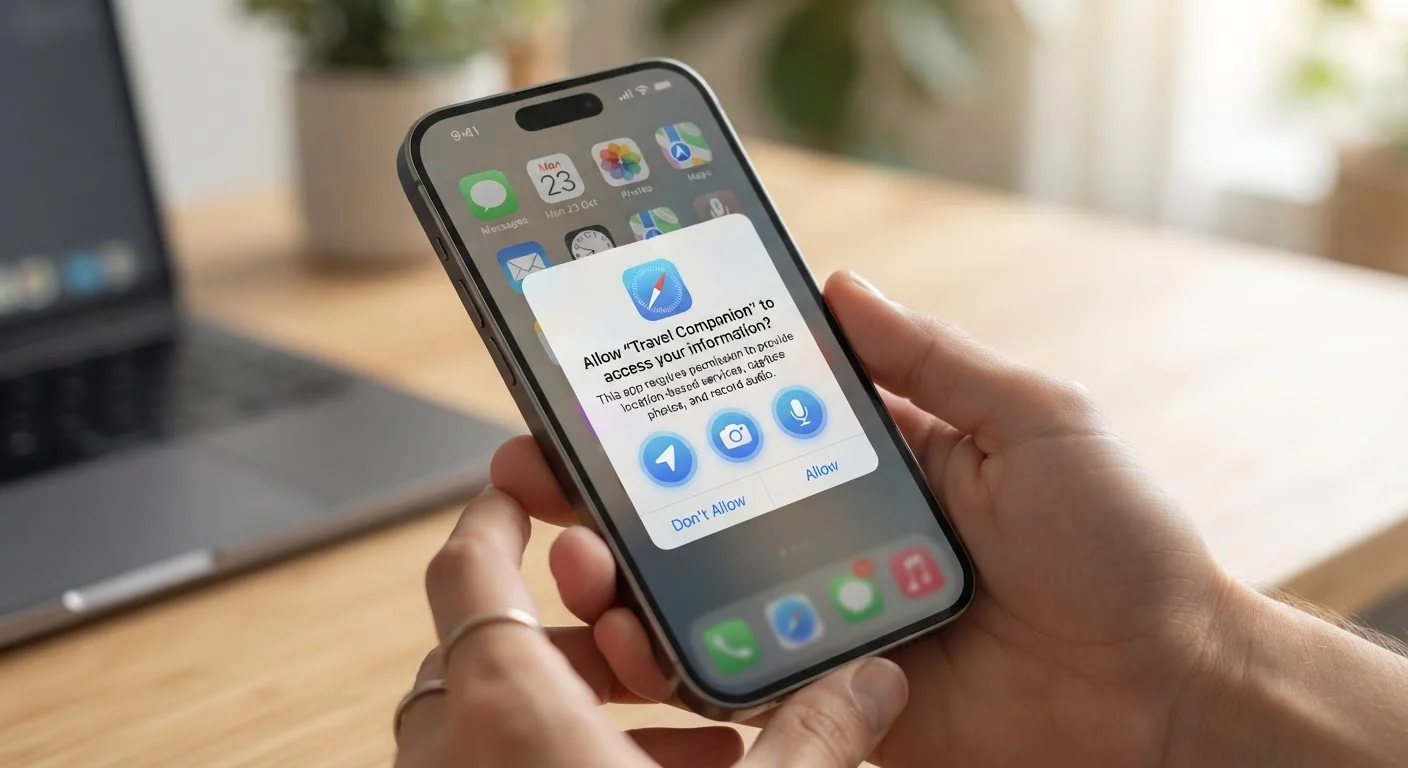
App permissions are explicit access requests that mobile applications make to your phone's hardware, sensors, and stored data. When you tap 'Allow' on a prompt asking for your location, contacts, or microphone, you're granting that app the technical ability to read from or interact with that resource. These permissions are designed to be gateways - controlled by you - between an app and the rest of your device.
On both Android and iOS, permissions are enforced at the operating system level, meaning an app cannot bypass them through software workarounds without a security exploit. However, the scope of what a permission covers can be broader than its one-word label implies.
What a Permission Actually Grants
The prompt is brief - 'Allow access to your location?' - but what sits behind that one tap is more expansive than most people realize. When you grant location permission, you're not handing over a single coordinate. Depending on how frequently an app accesses it, you may be sharing a detailed log of where you sleep, work, worship, receive medical care, and spend leisure time. Patterns in that data can be surprisingly revealing.
Microphone access is similarly layered. An app with microphone permission has the technical ability to record audio whenever it's active. While most legitimate apps only activate the microphone during explicit actions - a voice search, a video call - the permission itself doesn't limit when it can be used, only that it can be used at all. The same logic applies to camera access.
Contacts permission is another commonly underestimated grant. Handing it over doesn't just share your name; it shares the names, phone numbers, emails, and sometimes job titles of everyone in your address book - people who never consented to share their information with that app.
Permissions Aren't Binary Anymore
Modern mobile operating systems have moved beyond simple 'Allow or Deny' choices. iOS offers 'Approximate Location' as an alternative to precise coordinates, and both platforms support 'While Using' vs. 'Always' for location. Android introduced one-time permissions for sensitive resources. These graduated options let you match the access level to the actual need rather than choosing between full access and none.
Where Your Data Goes After the Tap
Granted permissions allow an app to collect data, but that data rarely stays only within the app itself. Most apps integrate third-party software development kits (SDKs) - pre-built code packages from analytics firms, advertising networks, and crash-reporting services. These SDKs often inherit access to the same data the app is permitted to collect.
In practice, this means granting one app location access may result in that location data flowing to several companies you've never heard of. This practice is standard across many free apps, since advertising revenue - driven by behavioral targeting - often funds the product. The data collection behind shopping apps and browser extensions follows a similar model.
~80%
Of free apps share data with third parties
Research published by privacy advocacy groups has consistently found the large majority of free mobile apps transmit user data to external analytics or advertising services.
45+
Average third-party trackers per popular app
Studies analyzing top app store titles have found many popular free apps embed dozens of distinct third-party tracking SDKs alongside their core functionality.
Data shared with third parties is governed by their own privacy policies, not just the app's. Those policies vary significantly in how long data is retained and whether it can be sold to data brokers.
Permissions That Warrant Extra Scrutiny
Not all permissions carry equal risk. These five deserve particular thought before you grant them:
- Precise location (especially 'Always'): Enables continuous background tracking. Choose 'While Using' when possible, or 'Approximate Location' on iOS.
- Microphone: Necessary for voice features but exploitable if abused. Grant it only to apps where audio input is a clear feature.
- Contacts: Exposes third-party personal data. Messaging and calling apps may genuinely need it; most others don't.
- Camera: Evaluate whether the app's function actually requires it. A photo editor needs it; a weather app doesn't.
- Storage/Files: On Android especially, broad storage access can expose photos, documents, and downloads. Newer Android versions have moved toward more scoped access.
Test Before Assuming You Must Accept
Many apps function perfectly well with certain permissions denied - the app may just warn you that a specific feature won't work. Try denying a permission first, then use the app normally. Only grant access if a feature you actually use stops working. This approach is especially useful for contacts, microphone, and precise location.
For a broader look at device-level controls beyond individual apps, the privacy settings every gadget user should review covers microphones, cameras, and ad identifiers that are often on by default.
How to Audit Permissions on Your Phone
Reviewing what you've already granted takes only a few minutes and is one of the more impactful privacy steps an everyday user can take.
On iPhone: Go to Settings → Privacy & Security. Each permission type - Location Services, Contacts, Microphone, Camera, and others - shows a list of every app that has requested it and what level of access each holds. Tap any app to change its access level.
On Android: Go to Settings → Privacy → Permission Manager (the exact path varies slightly by manufacturer). You'll see the same category-based breakdown. Android also surfaces a 'Permission usage' view showing which apps accessed sensitive permissions recently.
A useful audit habit: look for apps you rarely use that still hold location, microphone, or contacts access. Revoking permissions for dormant apps is a low-effort, meaningful reduction in your exposure. For a complementary deep-dive into account-level data controls, see how to audit what Google knows about you.