

Key Takeaways
- Most Wi-Fi problems stem from router placement, interference, or overcrowded channels - not broken hardware.
- Restarting your router clears memory and refreshes connections, solving many intermittent issues instantly.
- Physical obstacles and competing signals from neighboring networks are leading causes of poor performance.
- Switching from the 2.4 GHz band to 5 GHz can dramatically improve speed over short distances.
- A logical, step-by-step diagnostic approach saves time and avoids unnecessary equipment replacement.
What you will need
Why Systematic Diagnosis Matters
Wi-Fi problems are rarely mysterious once you approach them methodically. The root cause almost always falls into one of a handful of categories: signal range limitations, physical interference, channel congestion, or device-specific configuration issues. Skipping straight to rebooting everything or assuming hardware failure wastes time and can obscure what is actually wrong.
Starting from first principles means confirming what works before assuming what doesn't. This approach lets you isolate the specific variable causing the problem rather than making several changes at once - which makes it impossible to know what actually fixed it.
Before getting into the steps below, make sure you have what you need.
What you will need
Check Your ISP Before Going Further
Before adjusting anything in your home, verify that your internet service provider is not experiencing an outage. Visit your ISP's status page or use a mobile data connection to check. If the problem is upstream, no amount of router adjustment will fix it. Outage checkers and ISP apps typically show real-time service status for your area.
What You'll Need
The tools for this process are minimal. Most are things you already have at home.
Smartphone or Tablet
Used to test signal strength in different rooms and run speed tests independent of a laptop.
Ethernet Cable
Connects your device directly to the router to confirm whether the issue is Wi-Fi-specific or affects the whole connection.
Speed Test Website or App
Measures actual download and upload speeds so you can compare wired versus wireless performance.
Wi-Fi Analyzer App
Displays channel congestion and neighboring networks to help you choose a less crowded channel.
With these on hand, you can work through each diagnostic step systematically and make informed decisions at each stage. If you are also setting up new devices on your network, the common errors in home Wi-Fi setup for smart devices article covers band conflicts and placement mistakes worth avoiding.
Step-by-Step Troubleshooting
Follow these steps in order. Each one either resolves the issue or rules out a cause, narrowing the field before you move on.
Confirm the problem is Wi-Fi, not the internet itself
Plug a device directly into your router using an ethernet cable and run a speed test. If speeds are normal over a wired connection but poor over Wi-Fi, the issue is in your wireless setup. If the wired connection is also slow or broken, contact your ISP - the problem lies upstream from your router.
Restart your router and modem
Power off your router and modem (if they are separate devices). Wait a full 60 seconds - this allows capacitors to fully discharge and temporary memory to clear. Power on the modem first, wait for it to fully reconnect, then power on the router. This resolves a surprising number of intermittent issues including dropped connections and sluggish speeds.
Evaluate your router's physical placement
Routers broadcast signal in all directions, so central placement in your home provides the most even coverage. Walls, floors, and large metal appliances - especially refrigerators and microwaves - absorb or reflect Wi-Fi signals. Raise the router off the floor if possible, and keep it away from corners. Thick concrete walls are particularly damaging to signal range.
Check which frequency band your device is using
Most modern routers broadcast on two bands: 2.4 GHz and 5 GHz. The 2.4 GHz band travels farther but is more congested and slower. The 5 GHz band is faster but has shorter range. If you are close to the router and experiencing slow speeds, ensure your device is connected to the 5 GHz network. Many routers allow you to name each band separately so devices can connect to the right one deliberately. For more context on how newer standards use these bands, see how Wi-Fi 5 and Wi-Fi 6 handle these bands differently.
Identify and reduce interference sources
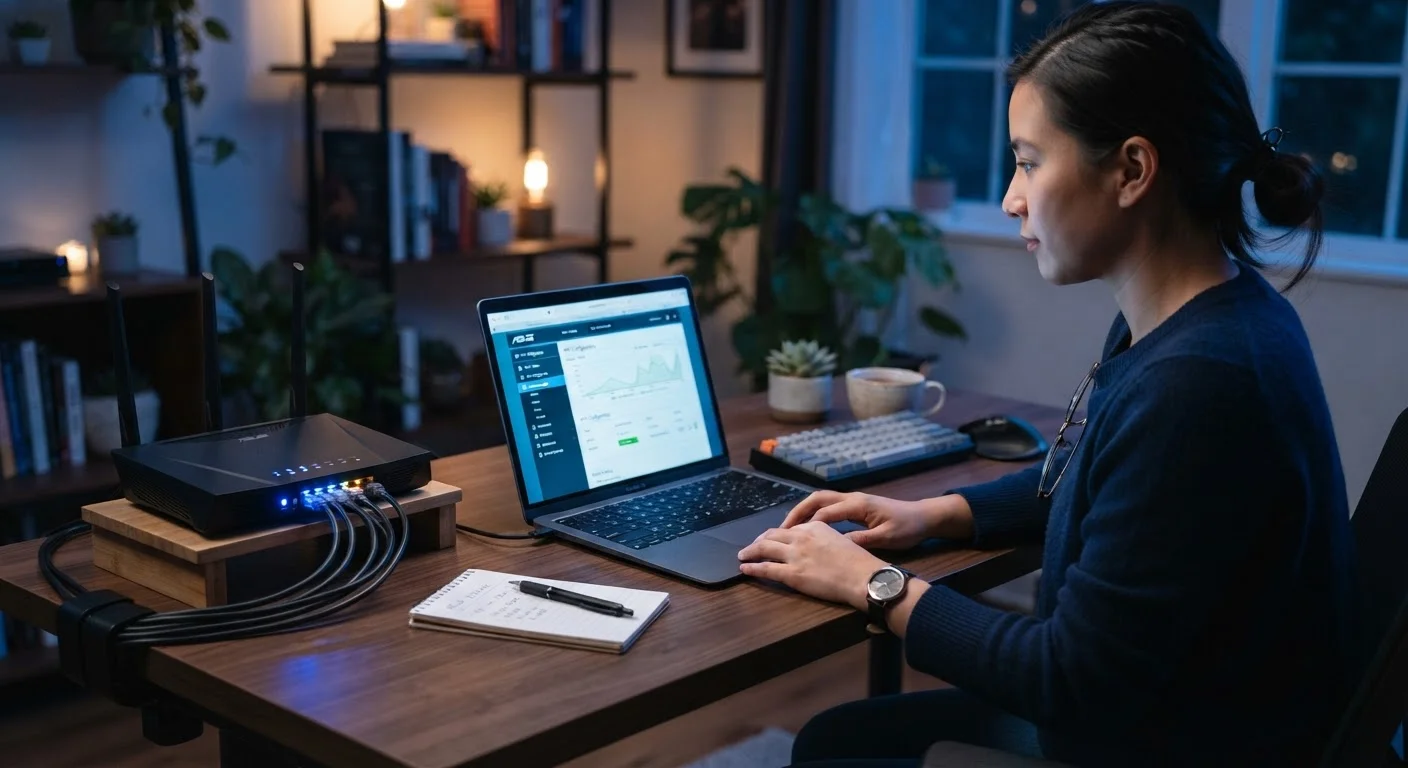
Microwave ovens, cordless phones, baby monitors, and neighboring Wi-Fi networks all operate on overlapping radio frequencies. Log in to your router's admin interface (typically via a browser address like 192.168.1.1 or 192.168.0.1 - check your router's label) and navigate to the wireless settings. Change the channel your router broadcasts on. For 2.4 GHz, channels 1, 6, and 11 do not overlap - choose whichever your neighbors use least.
Check connected device count and bandwidth usage
Too many active devices streaming, downloading, or syncing simultaneously can saturate even a healthy connection. Check your router's admin panel for a connected device list. Pause or disconnect devices that do not need constant connectivity. Large background tasks - cloud backups, system updates, video calls - use significant bandwidth and can degrade performance for everything else on the network.
Update router firmware and device network drivers
Router manufacturers release firmware updates that fix bugs, patch security vulnerabilities, and sometimes improve performance. Log in to your router's admin interface and look for a firmware update option, usually under 'Advanced' or 'Administration.' On your computer, check that your wireless network adapter driver is current via your device manager or the manufacturer's support page. Outdated firmware is a commonly overlooked cause of instability.
Use a Free Wi-Fi Analyzer App
Apps available on both Android and iOS can display signal strength, channel congestion, and neighboring networks in your area. This takes the guesswork out of channel selection and placement decisions. Look for tools labeled 'Wi-Fi analyzer' in your device's app store - many are free and require no technical background to read.
Avoid Factory Resets as a First Step
A factory reset erases all your custom settings - including your network name, password, and any port configurations. This is a last resort, not a first response. Work through the logical steps below before considering a reset, and document your current settings before performing one if you do reach that point.
If you have worked through every step and performance is still poor, your home's layout may simply require additional hardware - such as a mesh network system or a wired access point - to achieve consistent coverage. For guidance on what to evaluate when considering new equipment, see the factors that actually matter when choosing a home router.