

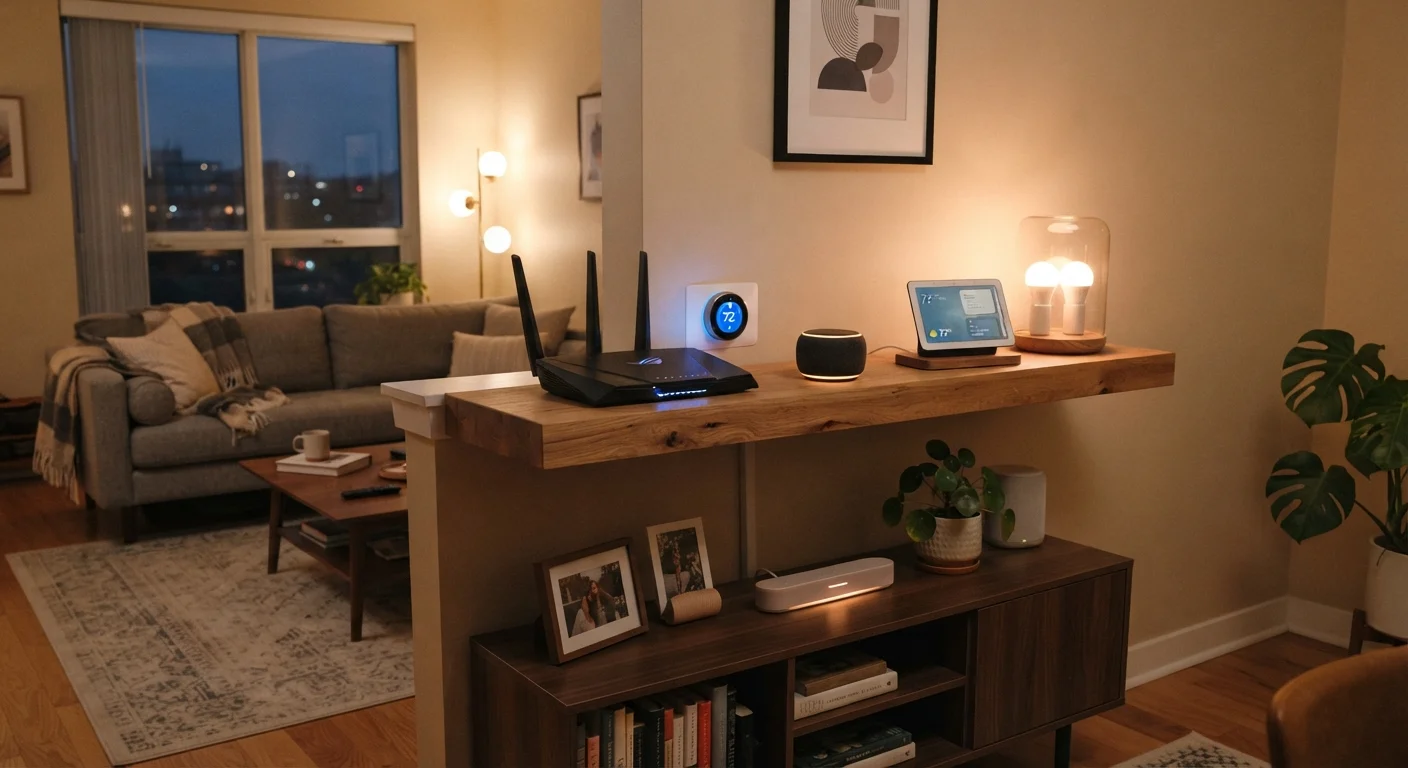
Key Takeaways
- Most smart devices require 2.4 GHz Wi-Fi, not the faster 5 GHz band - mismatches prevent connection.
- Router placement dramatically affects signal quality; walls and appliances block more signal than most people expect.
- Leaving default router credentials unchanged is one of the most common and correctable security mistakes.
- Running all smart devices on your main network creates unnecessary privacy and security exposure.
- Network congestion from too many devices on one channel degrades performance for every connected gadget.
Why Smart Device Setups Go Wrong
Setting up a home Wi-Fi network for smart devices looks straightforward - plug in the router, connect your phone, and start pairing gadgets. In practice, the process trips up a surprising number of households, often in ways that aren't obvious until something stops working. Band mismatches cause devices to appear broken. Poor router placement produces dead zones. Weak security leaves the whole network exposed.
The good news is that these mistakes are predictable and fixable. If you're just getting started with connected devices, the Smart Home Devices: A Ground-Up Introduction for First-Time Users is a useful starting point before configuring your network. For everyone else, the mistakes below are where most setup problems actually begin.
Connecting smart devices to the 5 GHz band when they require 2.4 GHz.
Why it happens: Many modern routers broadcast a single merged network name that automatically assigns devices to a band. Users assume the router handles everything, unaware that most smart home gadgets - thermostats, plugs, sensors - only support 2.4 GHz.
Placing the router in a corner, closet, or cabinet where signal is obstructed.
Why it happens: Routers often end up wherever the internet cable enters the home - frequently a wall corner or a utility closet. Most people don't realize how much concrete walls, metal appliances, and even water in fish tanks degrade wireless signal.
Leaving the router's default username and password unchanged.
Why it happens: Default credentials are set by manufacturers for convenience during initial setup, and the instruction to change them is easy to overlook - especially if the network appears to be working fine.
Running all smart devices on the same primary network as computers and phones.
Why it happens: It's faster and simpler to add every device to a single network during setup. The security implications of mixing device types aren't widely understood by general consumers.
Adding too many devices without accounting for router capacity.
Why it happens: Smart home adoption tends to happen gradually - one device at a time - so no single moment flags the growing load. Routers have practical limits on simultaneous connections, and consumer-grade devices can slow significantly when that threshold is approached.
Network Design and Security Habits That Matter
Beyond individual device connections, how you structure your network has long-term consequences for both reliability and safety. One of the most practical steps is creating a separate guest network or IoT VLAN specifically for smart devices. This isolates gadgets like smart bulbs and locks from your laptops and phones - if a device is ever compromised, it can't easily reach your more sensitive data.
2.4 GHz
Band required by most smart home devices
The vast majority of smart plugs, bulbs, and sensors are designed only for the 2.4 GHz band, which offers broader range at lower speeds than 5 GHz.
3
Non-overlapping 2.4 GHz channels available in the US
Channels 1, 6, and 11 are the only non-overlapping options in the 2.4 GHz band, making channel congestion a real concern in densely populated areas.
Channel congestion is another underappreciated factor. The 2.4 GHz band has only three non-overlapping channels in the US, and neighboring networks frequently compete on the same one. Most modern routers can automatically select the least congested channel, but this feature sometimes needs to be manually enabled in the router's admin panel. If you're experiencing consistent slowdowns, Wi-Fi Troubleshooting From First Principles walks through a step-by-step diagnostic process worth bookmarking.
For larger homes where a single router can't reach every room reliably, a mesh network is often the most effective structural fix. What Mesh Networks Are and Why They Matter for Home Connectivity explains how these systems distribute signal across multiple nodes rather than relying on a single broadcast point - a meaningful upgrade for smart device-heavy households.
Default Passwords Are Publicly Listed
Router manufacturers publish default credentials in product manuals and online databases - meaning anyone who knows your router model can look them up. Changing both your admin login and your Wi-Fi password immediately after setup is not optional if security matters to you. A strong password is one of the simplest, highest-value actions available on any home network.
Before adding any new gadget to your network, it's worth running through a brief pre-setup checklist. What to Check Before Setting Up Any New Smart Device at Home covers firmware updates, permission reviews, and account security - steps that take minutes but prevent common headaches later.