

Key Takeaways
- App caches, system files, and duplicate media are the biggest hidden storage drains on most devices.
- Many storage problems stem from misunderstandings about what counts as 'available' space.
- Regularly auditing storage - not just deleting random files - is the most effective long-term fix.
- Cloud backups can free local space, but they don't eliminate the need for periodic on-device cleanup.
- Understanding where space actually goes helps you make smarter decisions before buying more storage.
The Storage Gap: Why Your Device Has Less Room Than You Think
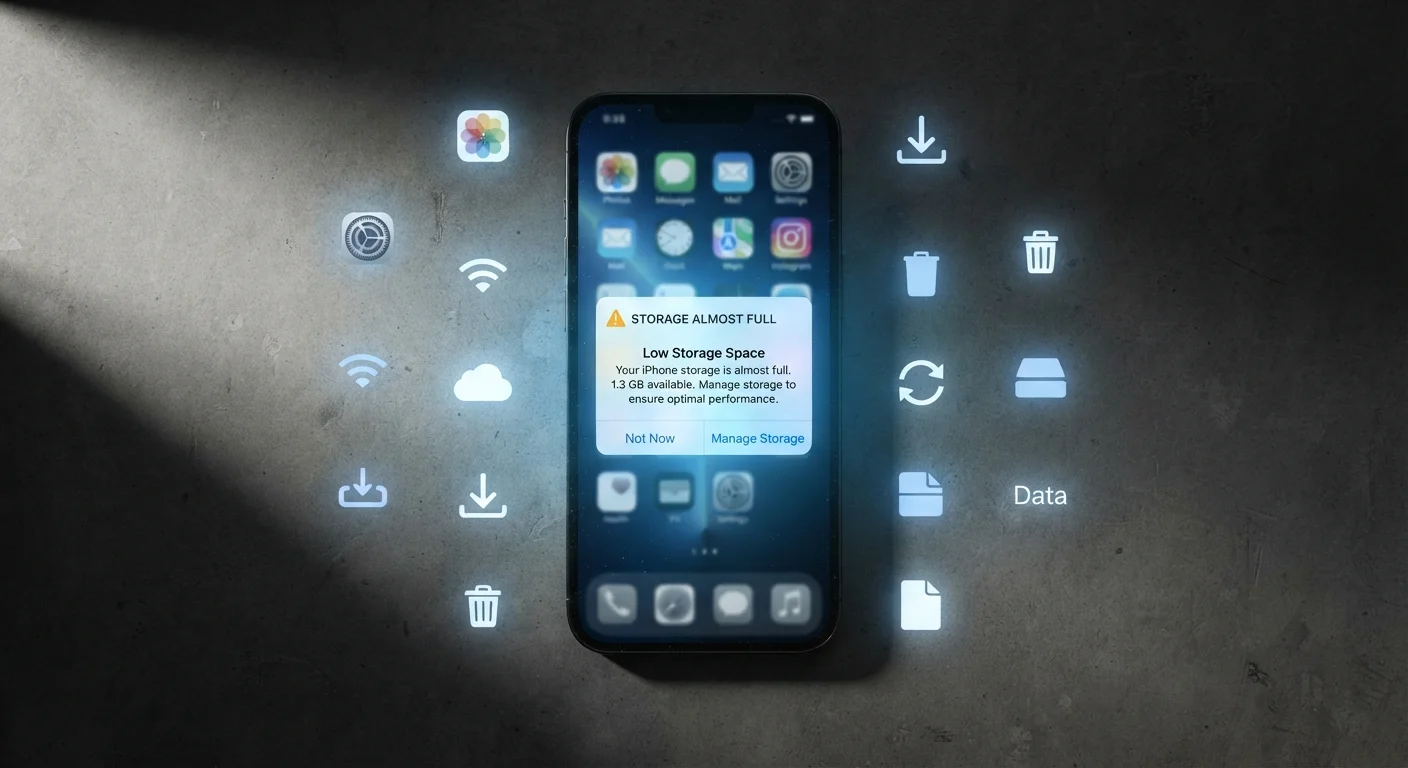
Most people discover their device is running low on storage only when a warning appears - and by then, the frustration has already set in. The real problem usually starts much earlier, with a fundamental misunderstanding of what storage capacity actually means in practice.
When a device is labeled as having 128 GB of storage, that number reflects the total physical capacity of the flash memory chip, not the space available to you. The operating system, pre-installed apps, recovery partitions, and firmware all carve out their share before you ever open the box. On many devices, this can account for 15-20% of total storage right out of the gate.
System Files Are Not Optional Space
A portion of every device's advertised storage is permanently reserved for the operating system, firmware, and core system processes. This space cannot be recovered or reassigned by the user. On a 64 GB device, usable space may be closer to 50-55 GB out of the box - before you install a single app or take a single photo.
Beyond that first gap, storage tends to disappear through a combination of predictable and invisible forces: growing app caches, duplicate media files, and software updates that expand over time. Understanding what's actually consuming your space is the first step toward managing it effectively. For a deeper look at how storage pressure contributes to broader device slowdowns, see why gadgets feel slower over time.
Common Mistakes That Quietly Drain Your Storage
Storage doesn't disappear all at once - it drains gradually through habits and misunderstandings that most people never think to question. The mistakes below represent the most common patterns, along with what's actually driving them and how to course-correct.
Assuming the advertised storage capacity is what you actually get to use.
Why it happens: Manufacturers list total storage, not usable storage. Consumers reasonably expect those numbers to reflect available space.
Ignoring app cache as a storage category because it sounds temporary.
Why it happens: The word 'cache' implies something small and self-clearing, but app caches accumulate over months and can grow to several gigabytes each for streaming or social media apps.
Keeping multiple copies of the same photos and videos without realizing it.
Why it happens: Editing apps, messaging platforms, and backup services often save their own copies of media files. Users don't notice because these duplicates live in separate folders.
Treating cloud backup as equivalent to freeing up local storage.
Why it happens: When files appear in cloud storage, it feels like they've been moved off the device - but many apps keep local copies by default even after syncing.
Never auditing apps that haven't been opened in months.
Why it happens: Apps accumulate quietly. Users install something once, forget it, and never consider that dormant apps still consume storage - sometimes more than when first installed due to background data growth.
One area that deserves particular attention is the relationship between cloud services and local storage. Many users assume that enabling a cloud backup automatically frees up space on the device - but that's rarely how it works by default. For a clear breakdown of how these two storage models actually differ, the guide on cloud storage vs. local storage trade-offs is worth reviewing.
Don't Delete Files You Haven't Identified
Clearing storage by deleting files at random - especially in system or app data folders - can break apps, corrupt settings, or cause data loss. Always use your device's built-in storage management tools to identify what's safe to remove before acting. When in doubt, back up first.
Building Better Storage Habits Before You Run Out
The most effective approach to storage management is preventive rather than reactive. A few consistent habits can keep your devices from hitting the wall unexpectedly.
~15-20%
Storage lost to OS and system files on a new device
Independent analyses of common consumer devices consistently show that operating system files and pre-installed software can consume 15-20% of advertised storage before any user content is added.
2-8 GB
Typical cache size per major streaming or social app
Storage audits on heavily used smartphones frequently reveal that individual streaming or social media apps accumulate between 2 and 8 gigabytes of cached data over several months of regular use.
Start with a periodic storage audit - most modern devices provide a built-in breakdown by category (apps, photos, system, other). Use this view rather than browsing individual folders, since the system view accounts for hidden data that file browsers don't always surface. Sort installed apps by size rather than name to quickly identify the biggest consumers.
Media files - particularly video - tend to grow fastest. If you shoot a lot of video, consider where those files ultimately live and whether local copies are necessary once a cloud backup is confirmed. Similarly, messaging apps that auto-download media can fill significant space invisibly; check their in-app settings and disable auto-download if you're not actively using those files.
Good storage habits also connect to broader device health. Devices that consistently run near-full storage can experience performance slowdowns and increased wear on flash memory. The habits that extend gadget longevity guide covers this connection in more detail. For more practical guidance on getting the most out of your devices and apps, explore the Digital hub.