

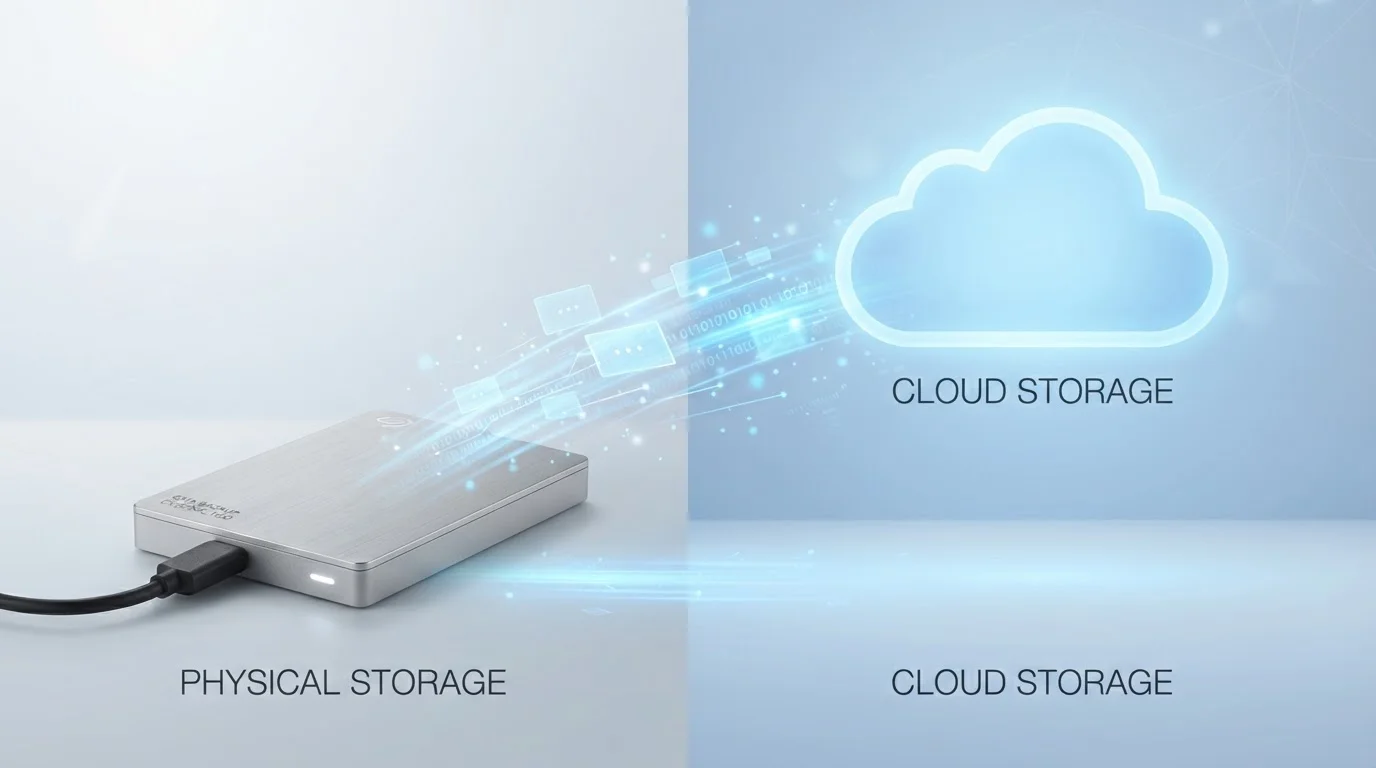
Key Takeaways
- Cloud storage requires an internet connection and ongoing subscription costs; local storage is a one-time hardware investment.
- Local storage gives you physical control over your data; cloud storage involves trusting a third-party provider's security practices.
- Cloud services typically include automatic backup and version history; local drives require you to manage backups yourself.
- Most everyday users benefit from using both approaches together rather than choosing just one.
- Privacy expectations differ significantly - files stored online are subject to provider terms of service and legal data requests.
Option A
Cloud Storage
The always-connected, anywhere-access approach.
Best for: Users who want automatic backups, cross-device access, and easy file sharing without managing hardware.
Option B
Local Storage
The self-contained, privacy-forward option.
Best for: Users who want full ownership and control of their files, prefer offline access, or handle sensitive data.
If you frequently switch between devices or collaborate with others
Cloud Storage
Cloud storage makes files instantly accessible across phones, tablets, and computers, and sharing with others requires nothing more than a link.
If you store sensitive personal or professional data and prioritize privacy
Local Storage
Local drives keep data entirely under your control, with no third-party access risk and no dependency on a provider's terms of service.
If you want protection against accidental file loss or device failure
Cloud Storage
Automatic syncing and version history mean your files are preserved even if your device is lost, stolen, or damaged.
If you regularly work in areas with unreliable internet access
Local Storage
Files stored locally are available instantly with no connectivity requirement, making local storage far more reliable offline.
If you manage a large media library or archive and want long-term cost control
Local Storage
High-capacity external drives carry a one-time cost that quickly becomes more economical than paying monthly fees for equivalent cloud storage space.
What Each Storage Type Actually Means
Cloud storage saves your files on remote servers operated by a third-party provider, accessible through the internet from any device. Services of this type sync files automatically and typically offer a small amount of free storage, with additional capacity available through a subscription.
Local storage refers to any physical medium attached to or built into your device - internal hard drives, solid-state drives (SSDs), USB flash drives, or external hard drives. Files exist solely on that hardware unless you deliberately move or copy them elsewhere.
If you've ever wondered why your phone keeps warning you about running out of space, our guide to hidden storage consumers explains what's quietly eating your device's capacity. Understanding what's stored where is the first step to managing either option effectively.
| Criterion | Cloud Storage | Local Storage |
|---|---|---|
| Cost model | Ongoing subscription fees | One-time hardware purchase |
| Internet required | Yes, for access and sync | No |
| Data ownership | Held by third-party provider | Fully user-controlled |
| Automatic backup | Yes, typically built in | No, must manage manually |
| Multi-device access | Seamless across devices | Requires physical connection |
| Risk of data loss | Low (distributed servers) | Higher if no backup exists |
| Privacy exposure | Subject to provider terms | No third-party involvement |
| Storage scalability | Easily upgraded via plan | Requires new hardware |
Cost, Privacy, and Reliability: The Core Trade-Offs
Cost: Cloud storage costs accumulate over time through monthly or annual subscriptions. A local hard drive involves a single purchase - often far cheaper over a three-to-five year period for the same effective capacity. That said, local hardware can fail, and replacing it adds unexpected cost.
Privacy: Files stored in the cloud are governed by the provider's terms of service and may be subject to legal data requests. Providers generally use encryption in transit and at rest, but a third party still holds the keys in most consumer services. Local storage gives you complete custody of your files - though it also means sole responsibility for security, such as encrypting a drive if it contains sensitive material. For a broader look at how digital convenience often trades against privacy, see our piece on privacy trade-offs in connected technology.
Reliability: Local drives can fail physically - SSDs are more durable than spinning hard drives, but neither is immune. Cloud providers distribute data across multiple servers, making data loss from hardware failure very unlikely. However, cloud access depends entirely on internet availability.
60%
US adults using cloud storage services
Pew Research Center surveys have found that a substantial majority of American adults store data, photos, or files using at least one cloud-based service.
~1 in 5
Hard drives that fail within 4 years
Long-term reliability studies from data storage firms suggest a meaningful proportion of mechanical hard drives experience failure within a four-year window.
3-2-1
Recommended backup copies for data safety
The widely cited 3-2-1 rule advises keeping three copies of data, on two different media types, with one stored offsite - combining cloud and local approaches.
Common Misconceptions Worth Clearing Up
Many people believe the cloud is inherently more secure than local storage, or vice versa. The reality is more nuanced - each has distinct vulnerabilities. Cloud accounts can be compromised through weak passwords or phishing; local drives can be stolen or physically damaged. Neither is categorically safer without the right precautions in place.
Another widespread misunderstanding is that files saved to a cloud folder are automatically backed up in a traditional sense. Many cloud sync services delete files across all devices if you delete them from one - that's syncing, not backup. True cloud backup works differently. Our article on common cloud computing myths untangles several of these confusions in more detail.
Syncing Is Not the Same as Backing Up
Cloud sync services - where a folder on your computer mirrors to the cloud - replicate deletions and changes across all connected devices. If you accidentally delete a file or it becomes corrupted, that change syncs everywhere. True backup services retain point-in-time snapshots of your files, allowing you to recover an older version. Check whether your cloud service offers version history before relying on it as a backup solution.
It's also worth noting that cloud storage and local storage are not mutually exclusive. Many IT professionals recommend a layered approach: keep actively used files accessible locally, back them up to a secondary local device, and maintain a cloud copy as a third safeguard. This strategy - sometimes called the 3-2-1 rule - offers resilience that neither option alone can match.
How to Decide What Works for You
Your day-to-day habits should drive the decision more than any technical specification. If you work across multiple devices, travel frequently, or collaborate with others regularly, cloud storage offers real practical advantages that local storage cannot replicate without additional complexity.
If you handle confidential files, work in environments with limited connectivity, or simply want to avoid recurring subscription fees, local storage may serve you better - provided you take backup seriously. A single local drive with no secondary copy is a single point of failure.
For many consumers, the most practical answer is a hybrid approach: use cloud storage for convenience and redundancy, and maintain local copies of anything critical. This mirrors the trade-off discussion around digital media access - just as downloading content for offline use sometimes outperforms streaming, keeping local copies of important files provides a safety net cloud access alone cannot guarantee.