

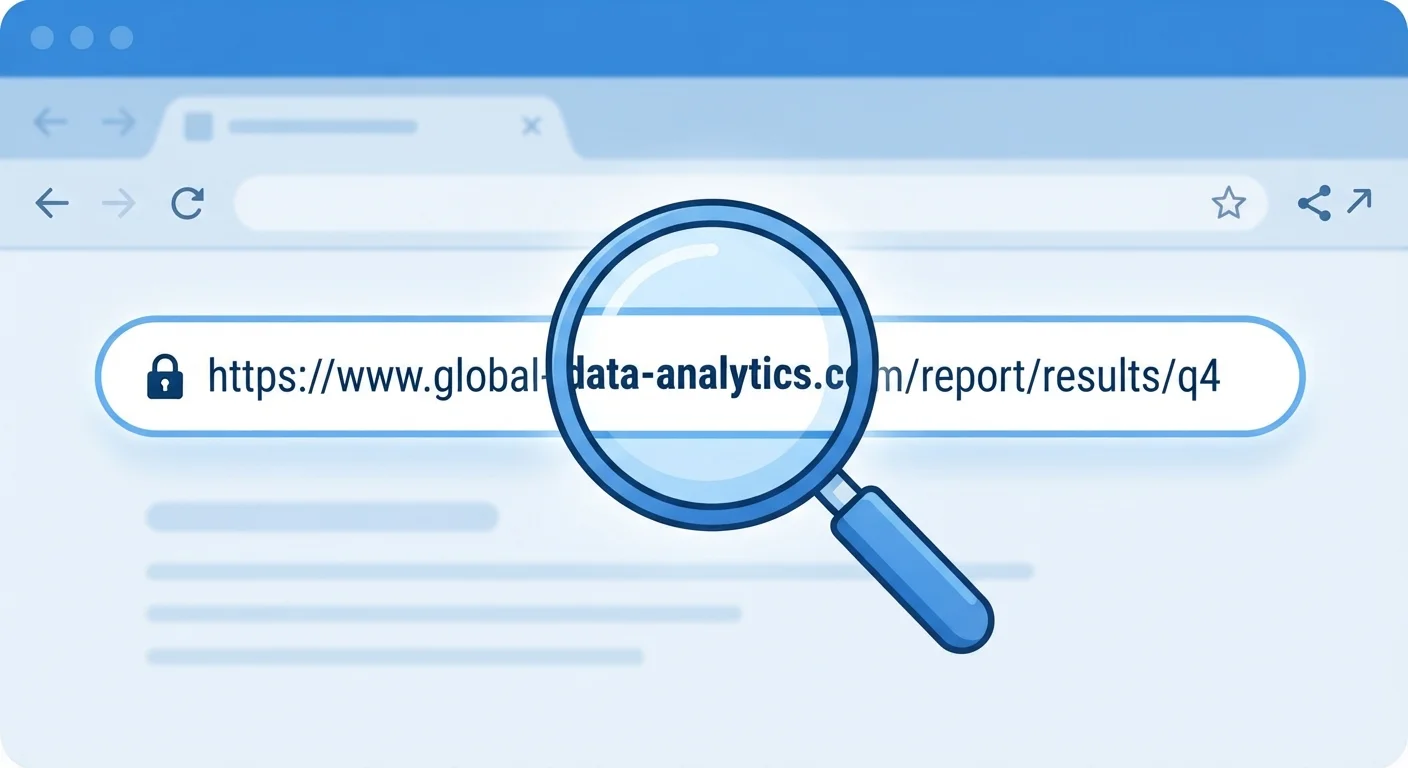
Key Takeaways
- The domain name - not the path - determines who actually controls a website.
- Subdomains can be crafted to look legitimate while pointing to a malicious site.
- HTTPS indicates an encrypted connection but does not guarantee a site is trustworthy.
- Query strings and URL shorteners can obscure a link's true destination.
- Hovering over a link before clicking reveals its real URL in most browsers.
What you will need
Why URL Literacy Matters
Every link you encounter online is a small address written in a predictable structure. Understanding that structure takes a few minutes to learn and can save you from handing credentials or money to an attacker. Most phishing and scam pages rely on readers not examining URLs carefully - the deception is often in plain sight, just one layer deeper than the display text of a hyperlink.
Display text and the underlying URL are entirely independent. A link that reads "Click here to log in to your bank" could point anywhere. This is why reading the actual URL - not the text label - is a foundational digital habit. It complements other critical skills, like knowing how to spot fake reviews before they influence your purchase or how to evaluate user reviews without being misled.
What you will need
The Anatomy of a URL
A URL (Uniform Resource Locator) has distinct, predictable parts. Breaking one down into its components makes each element easier to evaluate:
- Protocol:
https://- indicates an encrypted connection - Subdomain:
mail.oraccounts.- optional prefix, controlled by the domain owner - Root domain:
example.com- the registered identity of the site - Path:
/inbox/message/42- the specific page or resource - Query string:
?sort=date&view=list- parameters passed to the page - Fragment:
#section-2- jumps to a specific point on the page
Knowing which element you're looking at tells you exactly how much weight to give it. The root domain carries the most authority - it is the only part issued by a registrar to a verified owner. Everything else can be set freely by whoever controls that domain.
Understanding how pages are structured and surfaced can also help - our article on how search engines index web pages explains what sits behind the results you see every day.
Desktop or laptop browser
Allows you to hover over links to preview the destination URL in the status bar before clicking.
URL expansion service (e.g., any reputable link-preview tool)
Reveals the full destination behind shortened links so you can inspect the real URL.
Step-by-Step: Evaluating a Link Before You Click
Follow these steps any time you receive an unexpected link - in email, text, social media, or a chat message. The process takes seconds once practiced.
Hover First, Click Second
On a desktop browser, resting your cursor over any hyperlink displays its destination URL in the status bar at the bottom of the screen. This single habit takes less than a second and can prevent a significant number of accidental visits to malicious sites. On mobile, pressing and holding a link typically triggers a preview popup with the full address.
Identify the protocol
Every URL begins with a protocol - typically http:// or https://. The "s" in HTTPS stands for secure and means data traveling between your browser and the server is encrypted. Prefer HTTPS, but remember: encryption protects data in transit, not the trustworthiness of the destination.
Find and focus on the root domain
The root domain is the core registered name of a website - for example, example.com. To locate it in a full URL, work backward from the first single forward slash after the protocol. The segment immediately before that slash, reading right-to-left, is the top-level domain (.com, .org, .gov) and then the registered domain name itself.
In the URL https://accounts.google.com/login, the root domain is google.com. In a spoofed link like https://google.com.phishingsite.net/login, the root domain is actually phishingsite.net - Google is just a subdomain used to deceive.
Scrutinize subdomains for deception
Subdomains appear to the left of the root domain, separated by dots. Legitimate services use them to organize content (mail.example.com, support.example.com). Attackers exploit the fact that most readers scan left-to-right: a URL like paypal.com.verify-account.info appears to start with "paypal.com" but the root domain is verify-account.info.
Read the domain from right to left: top-level domain → root domain → subdomains. That order reflects the actual ownership hierarchy.
Read the path and query string
After the domain, a forward slash marks the beginning of the path - the specific page or resource on that server (/account/settings). After a question mark comes the query string, which passes parameters to the page (?ref=email&campaign=promo).
Long, complex query strings are normal for legitimate sites but can also be used to hide tracking tokens or confuse casual readers. Focus on the domain first; the path and query string matter most when they contain unexpected keywords like login, verify, or password-reset on a domain you don't recognize.
Expand shortened or obfuscated links
URL shorteners (services that compress a long URL into a brief redirect) hide the destination completely. Before clicking a shortened link received via email, text, or social media, paste it into a reputable link-preview or URL-expansion tool. These services follow the redirect chain and show you the final destination without loading it in your browser.
For broader context on how phishing works across different channels, see our guide on phishing, smishing, and vishing.
Verify unfamiliar domains independently
If a domain is new to you, don't rely on the link alone to assess it. Search for the organization using a separate browser tab, check whether the domain age and ownership information seem consistent (WHOIS lookup tools provide this publicly), and look for the site through a known, trusted starting point rather than following the link directly.
This habit pairs well with broader online safety skills - the same critical evaluation that helps you verify an unfamiliar online seller applies equally to unfamiliar URLs.
HTTPS Doesn't Mean Safe
Many people assume the padlock icon in the address bar means a site is legitimate. It only means your connection to that site is encrypted - it says nothing about the site's intent or honesty. Phishing sites routinely use HTTPS. Always evaluate the domain itself, not just the encryption indicator.
When in Doubt, Navigate Directly
If a link in an email or message looks like it leads to your bank, a retailer, or a government service, do not click it. Instead, open a new browser tab and type the organization's known address manually. This eliminates the risk of lookalike domains entirely. This practice is especially important for links asking you to log in, confirm information, or take urgent action.
For additional context on scam tactics that rely on deceptive links, our guide to browser extensions and their red flags covers tools that can assist with link safety in your browser.