

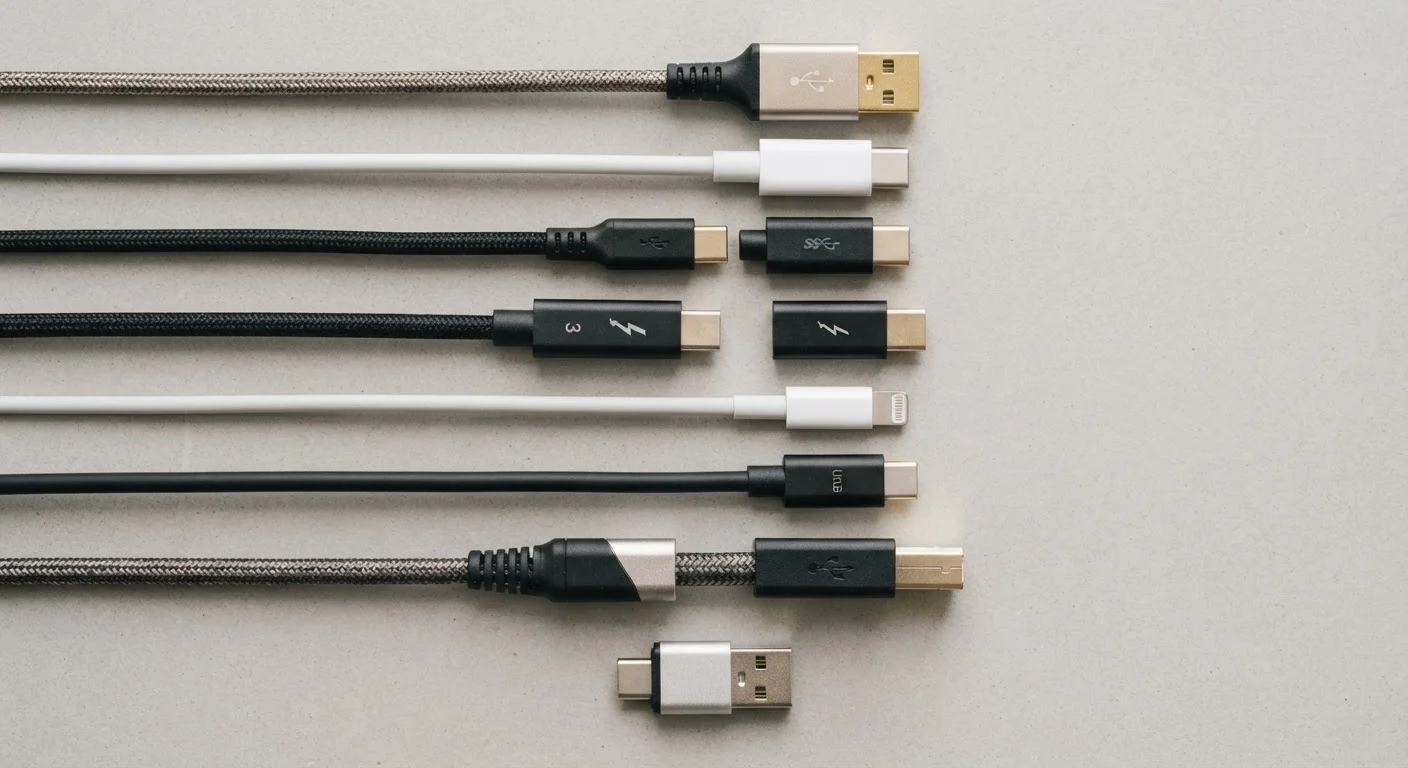
Why USB Is So Confusing
USB should be simple - one standard for connecting everything. Instead, most people stare at a cable drawer full of connectors they can't identify and ports they're afraid to mix up. The confusion is real, and it stems from one core problem: USB naming conflates two separate things - the connector shape and the data transfer protocol.
USB-A and USB-C describe what a plug looks like. USB 3.2 and USB4 describe how fast data moves. A USB-C port might run at USB 2.0 speeds, or it might support Thunderbolt 4. The same oval port can mean wildly different things depending on the device. Understanding this split is the single most useful thing you can take away from this reference.
For a broader look at how specs appear on gadget listings, see The Consumer's Field Guide to Gadget Specifications.
Connector Shapes: What Goes Into What
USB-A is the flat rectangular plug that has been on virtually every computer and charger since the late 1990s. It only inserts one way, and it carries USB 2.0 or USB 3.x protocols depending on the host device. A blue-colored USB-A port typically signals USB 3.0 or faster.
USB-B and its variants (Mini-USB, Micro-USB) are older square or trapezoidal connectors once common on cameras, phones, and peripherals. Most new devices have moved away from these shapes.
USB-C is the small, oval, reversible connector now found on laptops, phones, tablets, and accessories. Its symmetrical design means it plugs in either way. Crucially, USB-C is a connector standard - not a speed standard. A USB-C port's actual capability depends entirely on which USB protocol the device manufacturer implemented.
USB-C
A small, oval, reversible connector shape used across phones, laptops, and accessories. USB-C describes the physical plug only - actual data and charging speeds depend on the protocol the device supports.
USB 3.2
A family of USB data transfer protocols ranging from 5 Gbps (Gen 1) to 20 Gbps (Gen 2×2). The name was introduced in a 2019 rebranding that folded earlier USB 3.0 and 3.1 standards under one umbrella.
Thunderbolt 4
Intel's proprietary interface standard that uses the USB-C connector and delivers up to 40 Gbps. It mandates USB4 compatibility and supports advanced features like display daisy-chaining.
USB Power Delivery (USB PD)
A charging protocol that runs over USB-C connections and negotiates higher voltage and current levels for faster charging. USB PD is independent of data transfer speed.
USB4
The latest USB data transfer specification, offering up to 40 Gbps and requiring USB-C connectors. USB4 is closely aligned with Thunderbolt 4 in capability but is an open standard.
Backward compatibility
The ability of a newer USB device or port to work with older USB standards. A USB 3.2 device will function in a USB 2.0 port, but only at USB 2.0 speeds.
Transfer Protocols: Where the Speed Numbers Come From
The USB Implementers Forum (USB-IF), the industry body that oversees USB standards, has released multiple protocol generations. Here is how they stack up:
- USB 2.0 - tops out at 480 Mbps. Still common for keyboards, mice, and basic chargers where speed is irrelevant.
- USB 3.2 Gen 1 (formerly USB 3.0) - 5 Gbps. Handles fast flash drives and external hard drives.
- USB 3.2 Gen 2 - 10 Gbps. Found on higher-end peripherals and many modern laptops.
- USB 3.2 Gen 2×2 - 20 Gbps over USB-C only, using two data lanes simultaneously.
- USB4 - up to 40 Gbps. Requires USB-C, and overlaps significantly with Thunderbolt 4 in capability.
The naming overhaul the USB-IF introduced around 2019 is largely responsible for the confusion - older standards were retroactively renamed, so marketing labels and spec sheets often disagree.
80×
Speed increase from USB 2.0 to USB4
USB 2.0 tops out at 480 Mbps; USB4 reaches 40 Gbps - roughly 80 times faster under ideal conditions.
240W
Maximum USB Power Delivery output
USB PD 3.1, ratified by USB-IF, raised the ceiling to 240W - enough to charge large laptops and some workstations.
3
Thunderbolt generations using USB-C
Thunderbolt 3, 4, and the newer Thunderbolt 5 all use the USB-C connector, making visual identification difficult without port labeling.
Thunderbolt: A Different Standard on the Same Plug
Thunderbolt is Intel's proprietary high-speed interface, now developed alongside Apple. Thunderbolt 3 and Thunderbolt 4 both use the USB-C connector, which is why the two standards are so frequently confused.
Thunderbolt 4 delivers up to 40 Gbps, supports two 4K displays or one 8K display, and allows daisy-chaining multiple peripherals. It also mandates USB4 compatibility, meaning a Thunderbolt 4 port can handle USB-C devices - but a USB-C port cannot necessarily run Thunderbolt accessories. Look for the lightning bolt icon near the port to confirm Thunderbolt support.
Thunderbolt's advantages show up most clearly in professional workflows: video editing with external drives, multi-monitor desktop setups, or high-bandwidth docks that add ports to a thin laptop. For everyday charging and file transfers, USB 3.2 Gen 2 is more than sufficient. If you use a portable charger with your USB-C devices, understanding port ratings matters - Portable Chargers Decoded explains how wattage and output specs connect to real-world performance.
USB-C's role as a universal connector also parallels the evolution happening in EV charging. Just as one connector shape can support different charging speeds in electric vehicles - a topic covered in EV Connector Standards in the US - USB-C masks significant variation in what any given port can actually do.
Practical Compatibility Rules
USB is designed to be backward compatible - a USB 3.2 device plugged into a USB 2.0 port will work, just at the slower speed. That applies to connector types too: adapters let USB-A cables work with USB-C ports and vice versa, though you lose any speed advantage the newer protocol offers.
A few rules worth committing to memory:
- The slowest link in the chain determines actual speed. A fast SSD connected via a slow cable or hub will not perform faster than that bottleneck allows.
- Charging wattage is separate from data speed. USB Power Delivery (USB PD) is a charging protocol that works over USB-C - a port can support fast charging without supporting fast data transfer.
- Not all USB-C cables are equal. A cable rated for USB 2.0 speeds will limit a USB4 device. Check cable ratings, not just port ratings.
- Thunderbolt cables are backward compatible with USB-C devices, but the reverse is not always true.
For a broader look at how devices communicate across standards, The Connected Gadget Ecosystem covers wireless protocols with similar depth.
When Cable Quality Actually Matters
For basic charging and low-speed peripherals, nearly any USB-C cable works fine. But for USB4 or Thunderbolt 4 use cases - external GPUs, high-resolution displays, fast NVMe drives - cable certification matters significantly. Certified cables are tested to meet the spec's electrical requirements. Uncertified cables may work intermittently or not at all at the highest speeds.