

Key Takeaways
- iOS Screen Time and Android Digital Wellbeing offer app timers, downtime scheduling, and content filters built into the OS.
- These tools rely on self-reporting and can be bypassed through workarounds like switching browsers or using web versions of apps.
- Parental controls work best when combined with open conversations, not used as a standalone enforcement mechanism.
- Screen time settings do not restrict background data usage, notifications arriving on the lock screen, or third-party app stores on Android.
- Passcode-protecting your settings is essential - without it, limits can be easily disabled by anyone using the device.
Built directly into the OS - no extra app needed
Screen Time and Digital Wellbeing come pre-installed and integrate tightly with the OS, meaning they track usage across the entire device without needing third-party software or permissions.
Usage dashboards raise genuine self-awareness
Seeing quantified data about daily app habits - broken down by category - often prompts behavior change that vague intentions alone don't. Weekly reports give a useful benchmark over time.
Downtime scheduling creates device-free windows
Scheduled downtime blocks access to non-essential apps during specified hours, making it structurally easier to disconnect at night or during focused work periods.
Content filters can restrict age-inappropriate material
iOS Content & Privacy Restrictions and Google Family Link both offer content rating filters, SafeSearch enforcement, and the ability to block explicit websites - useful layers for households with children.
Communication limits add an extra safety layer
Apple's Screen Time allows parents to specify which contacts a child can call, message, or FaceTime, providing a layer of protection that goes beyond simple app timers.
Browser loopholes bypass most app-level limits
Time limits apply to native apps, not necessarily to the same content accessed through a mobile browser. This is one of the most commonly exploited gaps, particularly by older children.
Limits can be self-dismissed without a passcode
On iOS, the default "Ignore Limit" prompt allows users to extend their own time with one tap. Without a separate passcode protecting Screen Time settings, limits are easy to override entirely.
Notifications still arrive regardless of app limits
Even when an app is locked by a time limit, notifications continue to appear on the lock screen and can pull users back toward engagement before they've even opened the app.
Android controls are split across multiple apps
Basic Digital Wellbeing handles usage stats, but meaningful parental controls require Google Family Link - a separate setup that applies only to supervised accounts, creating a fragmented experience.
Third-party app stores on Android fall outside the system
On Android, apps installed from outside the Google Play Store - via sideloading - may not appear in Digital Wellbeing dashboards or be subject to Family Link restrictions.
No control over what happens within an allowed app
Screen time tools manage access to apps but cannot filter content within them. A child with access to a browser for homework has access to the full web during that time.
Our Verdict
Screen time settings are a genuinely useful first layer of digital habit management, but they are not a comprehensive solution. Their effectiveness depends heavily on how they are configured and whether users - especially children - are motivated to work within them rather than around them.
Best suited for adults who want lightweight usage awareness tools, or parents of younger children who have limited technical ability to circumvent restrictions.
What Screen Time Settings Actually Do
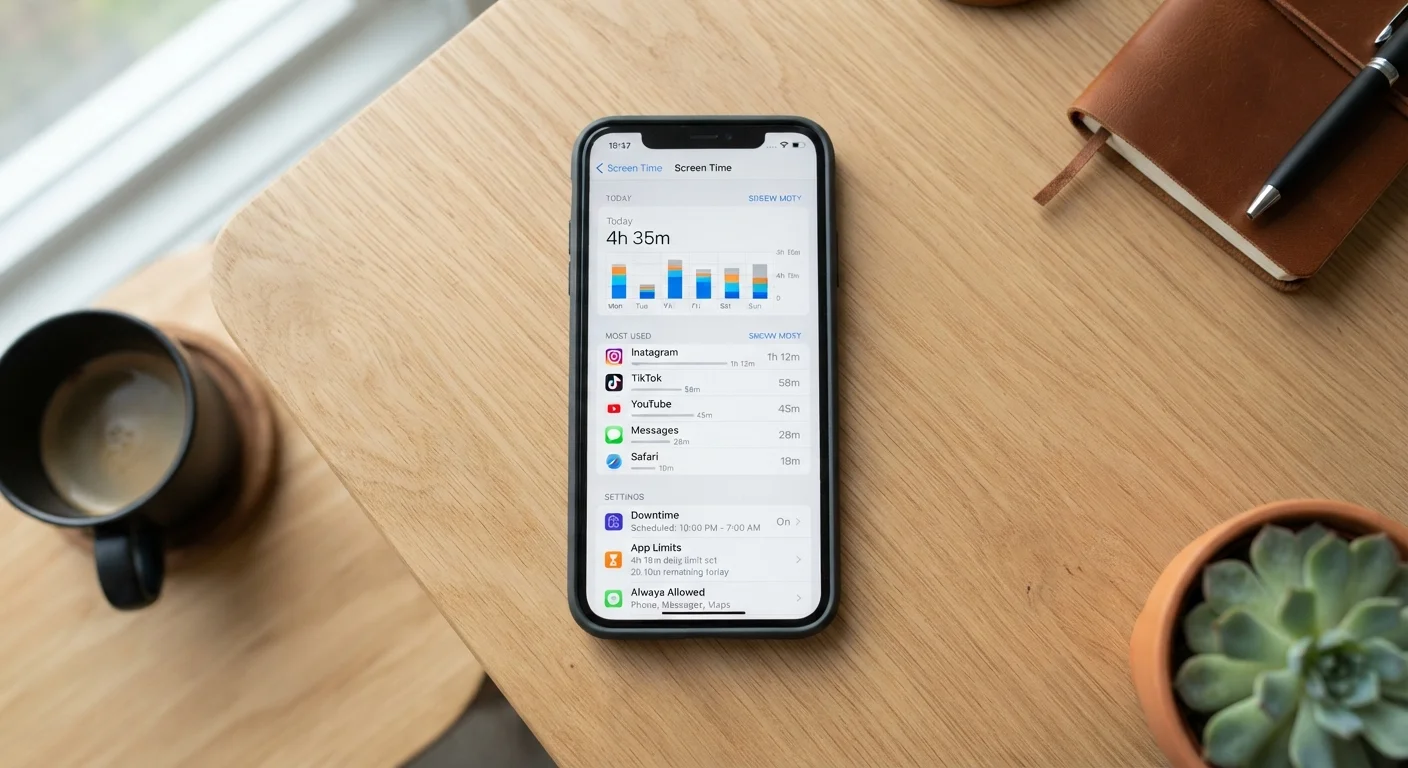
Both major mobile operating systems include built-in screen time management tools: Apple's Screen Time (iOS/iPadOS) and Google's Digital Wellbeing (Android). These features share a common set of capabilities - they track how long you spend in each app, let you set daily time limits per app or category, schedule downtime windows where only approved apps are accessible, and offer content filtering options.
On iOS, Screen Time also includes Communication Limits (controlling who a child can contact) and Content & Privacy Restrictions that can block explicit content in Apple's ecosystem and prevent app installations. Android's Digital Wellbeing focuses more on usage dashboards and Focus Mode, while deeper parental controls are handled through the separate Google Family Link app.
These tools genuinely help with awareness. Seeing a weekly report showing three hours spent in a single social app is often more motivating than guessing. For that reason alone, they're worth enabling. You can also pair them with other device-level tools - see how Focus and Do Not Disturb modes differ for complementary options.
Built directly into the OS - no extra app needed
Screen Time and Digital Wellbeing come pre-installed and integrate tightly with the OS, meaning they track usage across the entire device without needing third-party software or permissions.
Usage dashboards raise genuine self-awareness
Seeing quantified data about daily app habits - broken down by category - often prompts behavior change that vague intentions alone don't. Weekly reports give a useful benchmark over time.
Downtime scheduling creates device-free windows
Scheduled downtime blocks access to non-essential apps during specified hours, making it structurally easier to disconnect at night or during focused work periods.
Content filters can restrict age-inappropriate material
iOS Content & Privacy Restrictions and Google Family Link both offer content rating filters, SafeSearch enforcement, and the ability to block explicit websites - useful layers for households with children.
Communication limits add an extra safety layer
Apple's Screen Time allows parents to specify which contacts a child can call, message, or FaceTime, providing a layer of protection that goes beyond simple app timers.
The Real Limitations You Should Know
Understanding what these tools cannot do is just as important as knowing what they can.
The most significant gap is cross-platform consistency. App timers apply only to native apps installed on the device. If a time limit kicks in on an app, users can often access the same content through a mobile browser - and browser usage is tracked separately or not at all, depending on configuration. A YouTube app timer, for example, doesn't prevent someone from opening YouTube in Safari or Chrome.
There is also the question of override access. Both platforms let the device owner (or a supervising parent) set a passcode to prevent changes. Without that passcode enabled, any limit can be turned off in seconds. Even with a passcode, iOS Screen Time shows an "Ignore Limit" option that - by default - lets users request or self-approve more time with just a tap.
Finally, these settings don't address all vectors of phone usage. Lock screen notifications still appear, the phone still rings, and background app refresh continues regardless of any time limits in place. For a broader picture of what device settings can and can't govern, understanding privacy settings covers additional control layers worth knowing.
Browser loopholes bypass most app-level limits
Time limits apply to native apps, not necessarily to the same content accessed through a mobile browser. This is one of the most commonly exploited gaps, particularly by older children.
Limits can be self-dismissed without a passcode
On iOS, the default "Ignore Limit" prompt allows users to extend their own time with one tap. Without a separate passcode protecting Screen Time settings, limits are easy to override entirely.
Notifications still arrive regardless of app limits
Even when an app is locked by a time limit, notifications continue to appear on the lock screen and can pull users back toward engagement before they've even opened the app.
Android controls are split across multiple apps
Basic Digital Wellbeing handles usage stats, but meaningful parental controls require Google Family Link - a separate setup that applies only to supervised accounts, creating a fragmented experience.
Third-party app stores on Android fall outside the system
On Android, apps installed from outside the Google Play Store - via sideloading - may not appear in Digital Wellbeing dashboards or be subject to Family Link restrictions.
No control over what happens within an allowed app
Screen time tools manage access to apps but cannot filter content within them. A child with access to a browser for homework has access to the full web during that time.
Using These Tools More Effectively
Getting real value from screen time controls comes down to configuration and context, not just switching them on.
Set a passcode immediately. On iOS, navigate to Settings > Screen Time and tap "Use Screen Time Passcode." On Android with Family Link, the supervising account controls changes. Without this step, limits are advisory at best.
Use Downtime, not just app limits. Scheduling a downtime window - say, 9 PM to 7 AM - restricts all non-approved apps during those hours, which is considerably harder to work around than a per-app timer that can be dismissed with a tap. This is especially relevant for sleep hygiene; research into how screen exposure affects sleep consistently points to evening use as a key disruption factor.
For families, complement with conversation. Technology controls work best alongside clear expectations. parental controls work better paired with open dialogue - children who understand why limits exist are less motivated to circumvent them. Also consider that streaming platforms have their own separate content controls, covered in detail in this guide to parental controls on streaming services.
Screen Time Settings Differ by Device and Account Type
The depth of control available through Screen Time or Digital Wellbeing varies significantly depending on whether the device has a child account, a personal account, or a shared family plan. Features like Communication Limits and supervised app approvals are only fully available on accounts set up as child profiles under a Family Sharing or Family Link arrangement. If you're configuring controls on your own adult account, some options - like hard app limits that require a passcode to override - behave differently than they do in a supervised child setup.
4+ hrs
Average daily smartphone use among US adults
Data from multiple digital wellness research sources consistently places average US adult smartphone use above four hours per day, excluding phone calls.
~65%
Parents who use some form of parental controls
According to Pew Research Center survey data, roughly two-thirds of US parents of children under 12 report using parental controls on at least one device.