

Key Takeaways
- Sync failures almost always trace back to connectivity, account state, or available storage.
- A logical, step-by-step approach resolves most problems without reinstalling apps or resetting devices.
- Low available storage is a frequently overlooked cause of sync interruptions on all platforms.
- Checking one variable at a time makes it easier to identify exactly what broke and why.
- After restoring sync, a solid backup routine is your best protection against data loss.
What you will need
Why Sync Breaks in the First Place
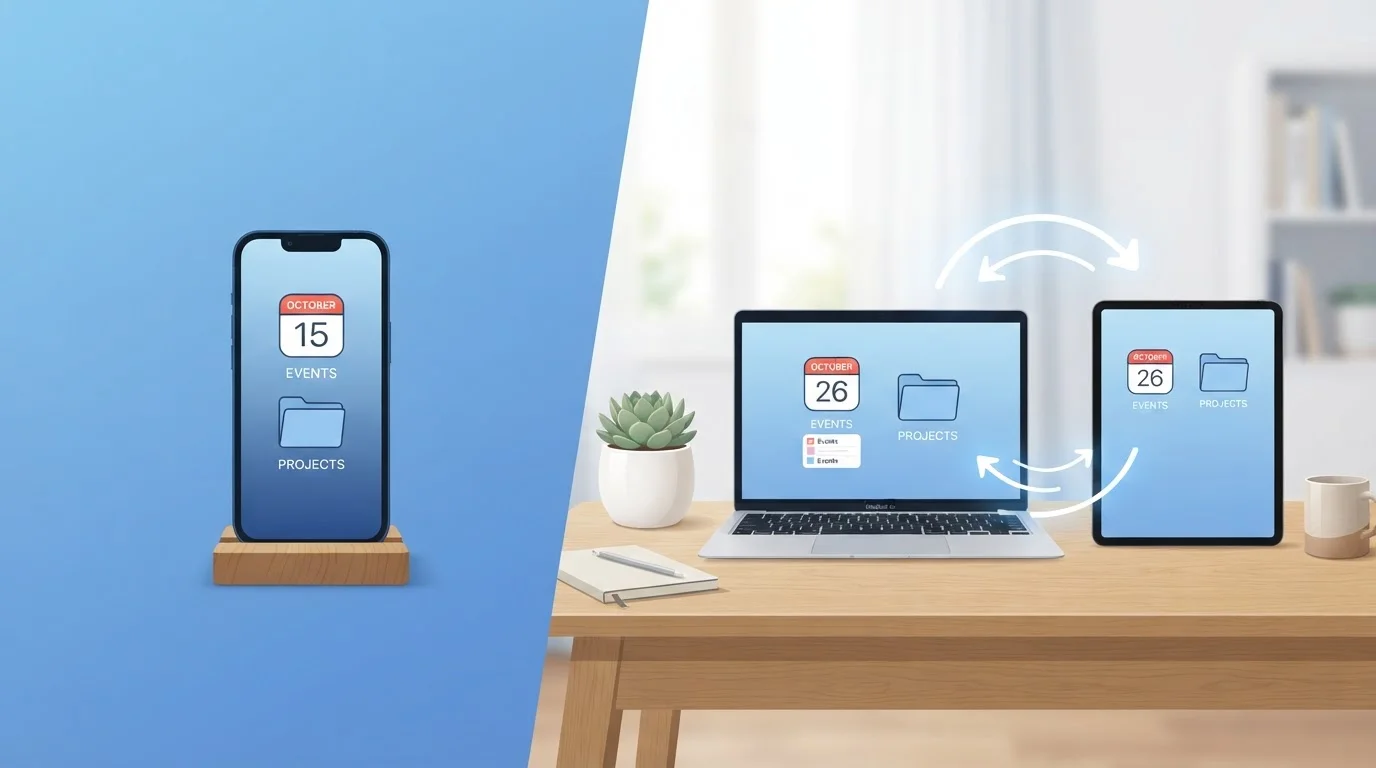
Device sync - the background process that keeps your photos, contacts, calendars, and files consistent across your phone, tablet, and computer - relies on several things working simultaneously: an active internet connection, a signed-in account with valid credentials, sufficient storage space, and an app or service that hasn't hit an error state. When any one of those elements falters, sync quietly stops without much warning.
The most common culprits break down into four categories:
- Network issues: Sync services typically require a stable connection. Weak Wi-Fi, a brief cellular dropout, or a VPN (virtual private network) that intercepts traffic can all interrupt the process.
- Account problems: A password change, an expired session token, or a billing issue on a cloud subscription can put your account into a state where the service stops accepting data.
- Storage limits: Cloud storage quotas and on-device space both matter. If either is full, new data can't be uploaded or downloaded. This is a more common cause than most people expect - see our guide on why gadgets run out of storage for more on what typically consumes space.
- App or OS errors: Software bugs, a backgrounded app that crashed silently, or a pending system update can freeze a sync process in place.
Understanding these categories means you can move efficiently through fixes rather than guessing randomly.
What you will need
Step-by-Step: Restoring Sync on Any Device
The steps below follow a logical progression from simplest to more involved. Work through them in order - most users find their issue resolves before reaching the later steps.
Confirm your internet connection is working
Open a browser and load a webpage you haven't visited recently to confirm your connection is live and not serving a cached page. If the page loads slowly or fails, troubleshoot your network first - restart your router or switch from Wi-Fi to cellular (or vice versa) to isolate the issue. Sync can't proceed without a reliable connection.
Check your cloud storage quota
Navigate to your cloud service's storage settings - this is typically found in your account settings on the web or in your device's system settings. If your quota is at or near 100%, the service will stop accepting new data. Either delete items you no longer need or review your plan options. Remember to check on-device storage as well: a full device can prevent downloaded sync data from landing correctly.
Sign out and sign back into your account
In your device's settings, find the account associated with the sync service (Apple ID, Google, Microsoft, or a third-party service) and sign out. Wait 30 seconds, then sign back in using your current credentials. This forces the device to refresh its authentication token - a common fix when a password change or session expiry is the hidden cause.
Toggle sync off and back on for the affected service
Go to Settings, locate the specific sync service or app, and turn sync off. Wait about 15 seconds, then turn it back on. This restarts the sync process from scratch without affecting your stored data. On many platforms this is all that's needed to clear a stalled sync queue.
Force-quit and relaunch the relevant app
If you're syncing through a specific app (such as a notes, calendar, or cloud storage app), force-quit it entirely rather than just minimizing it. On most smartphones, swipe it away from the recent apps list. On a computer, use the task manager or Activity Monitor to end the process, then reopen it. A crashed background process can block sync indefinitely without showing any visible error.
Restart the device
A full restart clears temporary memory, reloads system services, and forces apps to re-establish their connections to sync servers. This resolves a significant proportion of lingering sync issues that earlier steps didn't fix. After restarting, open the sync app or service and check whether data begins updating.
Check for pending app or system updates
Open your device's app store and system update settings and install any outstanding updates for both the operating system and the app handling sync. Known sync bugs are regularly patched in minor updates. Once updates are installed, restart the device again and recheck sync status.
Avoid Resetting Before Ruling Out Simpler Fixes
Factory resets and app reinstalls are sometimes suggested as quick solutions online, but they should be a last resort. Resetting a device or removing a sync app without verifying your data is safely stored elsewhere can result in permanent data loss. Work through each step above methodically before considering any reset option.
Once sync is restored, pair it with a reliable backup habit. Sync and backup serve different purposes: sync keeps data current across devices, while backup protects against accidental deletion or account loss. Our device backup checklist walks through both in detail.
If your devices feel sluggish even after sync is restored, digital clutter may be compounding the issue - clearing it can improve both speed and sync reliability over time.
Keeping Sync Stable Long-Term
Once sync is working again, a few habits keep it reliable:
- Review storage regularly. Set a reminder every few months to check both your cloud quota and on-device space. Running either close to full is the fastest route back to sync failures.
- Keep apps and operating systems updated. Many sync bugs are patched in minor updates that install without fanfare. Staying current means fewer silent failures.
- Sign out and back in after password changes. If you update your account password anywhere, revisit every device and re-authenticate the sync service. Sessions don't always refresh automatically.
- Use consistent folder and file structures. A clear, organized file system makes it easier to notice when something isn't appearing where it should. Our practical file and folder system guide can help you build a structure that travels well across devices.
For households managing sync across multiple people's devices, the organizational strategies in organizing a multi-device household apply just as well to digital accounts as to physical hardware.
When the Same Problem Recurs Repeatedly
If sync breaks on a regular basis with no clear trigger, review whether any recently installed app has permission to modify your account data or restrict background activity. Some battery optimization settings aggressively suspend background processes, which can interrupt sync on a schedule. Check your device's battery or power management settings and whitelist your sync apps from those restrictions.